
This page is not an official page of the app or its developer, but an independent editorial publication created for informational and commentary purposes. Unless expressly stated otherwise, neither the app nor its developer is affiliated with, endorsed by, sponsored by, authorized by, or otherwise officially connected with MWM, Apple, Google Play, the app publisher, or the app's developer, and nothing on this page implies that the app was developed using MWM's services. Any trademarks, logos, screenshots, and other content remain the property of their respective owners.


Microsoft Planner
Organize work visually, collaborate seamlessly within Office 365, and keep your team on track with intuitive boards designed for modern professionals.
Downloads
6M+User Rating
Total Ratings
29K+Publisher
Category
ProductivityLocales
29Latest Version
1.17.11Size
150.6 MBFirst Released
May 18, 2017Master Your Workflow with Visual Precision
Experience the power of Microsoft Planner on mobile. Organize tasks, collaborate with your team, and hit your deadlines with the tool designed for professional efficiency.
Intuitive Kanban Boards
Organize tasks into visual buckets and manage status changes with simple drag-and-drop functionality.
Seamless 365 Integration
Link files, photos, and discussions directly to tasks within the secure Microsoft ecosystem you trust.
Frequently Asked Questions
Everything you need to know about Microsoft Planner
What is Microsoft Planner?
Microsoft Planner provides a simple, visual way to organize teamwork. It enables teams to create plans, organize and assign tasks, share files, and get updates on progress.
Does Microsoft Planner require an Office 365 subscription?
Yes, Microsoft Planner requires an eligible Office 365 work or school subscription. It does not support Office 365 personal accounts. Contact your IT department if unsure about your company’s subscription.
How does Microsoft Planner organize tasks?
Microsoft Planner organizes tasks visually. Each plan features its own board where tasks are arranged into buckets. Users categorize tasks by status or assignee and update them by dragging and dropping between columns.
Can teams collaborate and chat within Microsoft Planner?
Yes, Microsoft Planner is built for Office 365 and allows teams to collaborate directly. Users can work on tasks together, attach photos, and have conversations about tasks without switching between different applications.
Is Microsoft Planner accessible across multiple devices?
Yes, Microsoft Planner works across all your devices. This functionality ensures team members remain synchronized, allowing them to continue conversations and update tasks whether they are mobile or at their desk.
How do users view all their assigned tasks in Microsoft Planner?
Users view all their assigned tasks through the 'My Tasks' view in Microsoft Planner. This provides a comprehensive list of all tasks and their statuses across all plans, ensuring visibility on individual contributions.
Can files and photos be attached to tasks in Microsoft Planner?
Yes, files and photos can be attached to tasks in Microsoft Planner. The app requests permission to access your Photos app to select images or your Camera app to take new photos for direct attachment to tasks.
The following screenshots and description are sourced directly from the app's official store listing and are the property of the app developer.
App Store
Screenshots
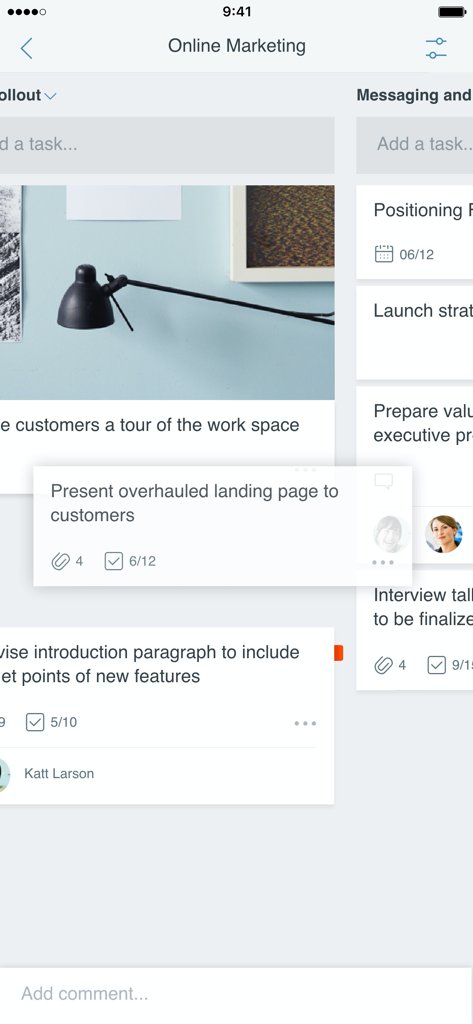
Microsoft Planner mobile app interface showing a visual Kanban board for project task management
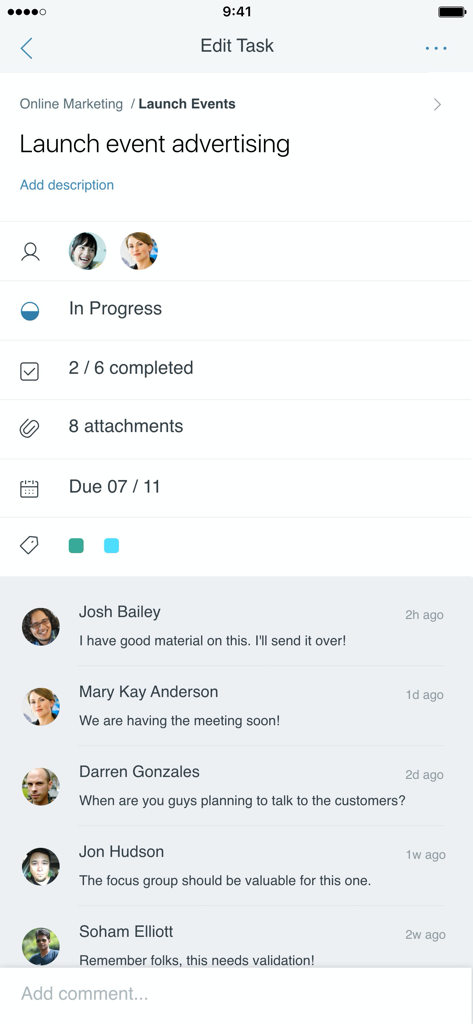
Microsoft Planner mobile app interface showing task details with status progress and team comments
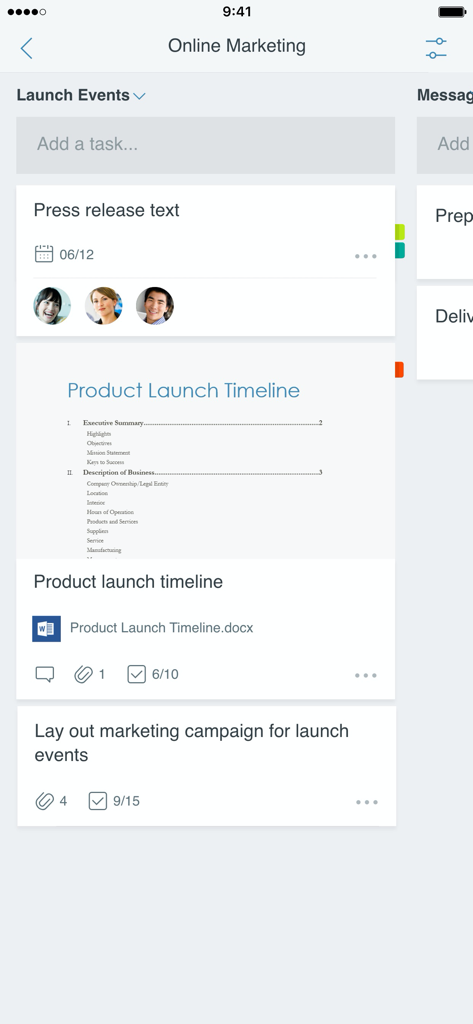
Mobile interface of Microsoft Planner showing a task board for an online marketing project with team assignments and attachments
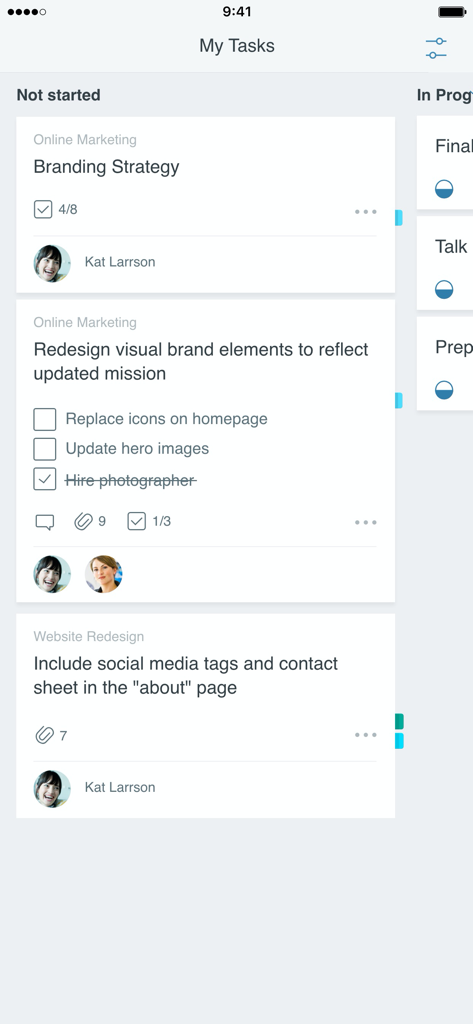
Interface of Microsoft Planner app showing a Kanban board with task cards organized in the Not started column.
Description
Download
More Like This
Apps with similar features and user experience
Xmind - Mind Map & Brainstorm
Xmind Ltd.

Smartsheet: Projects & Teams
Smartsheet Inc.

Miro: your visual workspace
Realtimeboard Inc.

Padlet
Wallwisher, Inc.

Asana: Work Management
Asana, Inc.

Microsoft Loop
Microsoft Corporation

Microsoft Whiteboard
Microsoft Corporation

Nola: Story Planner & Writing
indent Inc.

MeisterTask - Task Management
MeisterLabs
This page is not an official page of the app or its developer, but an independent editorial publication created for informational and commentary purposes. Unless expressly stated otherwise, neither the app nor its developer is affiliated with, endorsed by, sponsored by, authorized by, or otherwise officially connected with MWM, Apple, Google Play, the app publisher, or the app's developer, and nothing on this page implies that the app was developed using MWM's services. Any trademarks, logos, screenshots, and other content remain the property of their respective owners.