
This page is not an official page of the app or its developer, but an independent editorial publication created for informational and commentary purposes. Unless expressly stated otherwise, neither the app nor its developer is affiliated with, endorsed by, sponsored by, authorized by, or otherwise officially connected with MWM, Apple, Google Play, the app publisher, or the app's developer, and nothing on this page implies that the app was developed using MWM's services. Any trademarks, logos, screenshots, and other content remain the property of their respective owners.

Xerox® Workplace
Connect instantly to any printer, release documents securely, and integrate your favorite cloud apps into one seamless professional workflow from your mobile device.
Downloads
307K+User Rating
Total Ratings
0Publisher
Category
ProductivityLocales
12Latest Version
6.1.3Size
35.2 MBFirst Released
May 10, 2012The Modern Command Center for Your Office
Bridge the gap between your mobile workflow and physical documents with enterprise-grade security and effortless connectivity designed for the hybrid professional.
One-Tap Instant Connection
Skip the complex network setup. Connect to any Xerox MFP instantly by scanning a QR code or using NFC for seamless, driver-free printing.
Secure Pull Printing
Protect sensitive data by releasing documents only when you are standing at the printer. Your phone acts as a secure key for total confidentiality.
Frequently Asked Questions
Everything you need to know about Xerox® Workplace
What is the primary function of the Xerox® Workplace mobile app?
The Xerox® Workplace app enables local printing and scanning with a Xerox MFP. When connected to Xerox® Workplace Cloud/Suite, it offers secure, controlled access for printing and scanning from anywhere.
How can users connect to a printer using the Xerox® Workplace app?
Users can connect to a printer by scanning its specific QR Code or by using NFC to tap on an NFC-enabled MFP. This provides quick and simple printer setup.
What print options are available within the Xerox® Workplace app?
The Xerox® Workplace app allows users to select print options such as 1-Sided/2-Sided, color/black-white, stapled, paper-size, page range, and Secure Print pin.
Can the Xerox® Workplace app print documents from other applications?
Yes, the Xerox® Workplace app supports direct printing from other applications like Dropbox, Google Drive, and various other integrated sources.
Does the Xerox® Workplace app support scanning documents?
Yes, the Xerox® Workplace app allows users to wirelessly scan documents directly from their Multifunction Printer (MFP) from within the application.
Does Xerox® Workplace support printing to non-Xerox brand printers?
Yes, when used with Xerox Workplace Suite or Cloud, the app supports printing to Xerox, Fuji Xerox, and non-Xerox network print devices, including HP, Ricoh, Epson, and Canon.
How do I get started with the Xerox® Workplace app?
To start, obtain your Company Code, download the app, register and log in, then open a document on your device, select "Open In..." with Workplace, choose a printer, and release your document.
Does Xerox® Workplace offer secure print release functionality?
Yes, the app allows users to upload documents securely for release later at any licensed printer, known as pull print, ensuring job privacy and security.
Can the Xerox® Workplace app help find nearby printers?
Yes, when used with Xerox Workplace Suite or Cloud, the app can use GPS to find locations and display available printers to the user.
What document formats can the Xerox® Workplace app print?
The Xerox® Workplace app can print MS Office, Adobe Acrobat, email, text, Open Office, and various image formats when integrated with Xerox Workplace Suite or Cloud.
Can the Xerox® Workplace app unlock a printer?
Yes, the mobile app can unlock supported Xerox Printers using an unlock code or NFC, serving as an alternative to a traditional card.
Does the Xerox® Workplace app include copy functionality?
Yes, the app features a "Copy" function allowing users to manage settings like original type, orientation, size, copies, output type, and output media size for their selected device.
The following screenshots and description are sourced directly from the app's official store listing and are the property of the app developer.
App Store
Screenshots
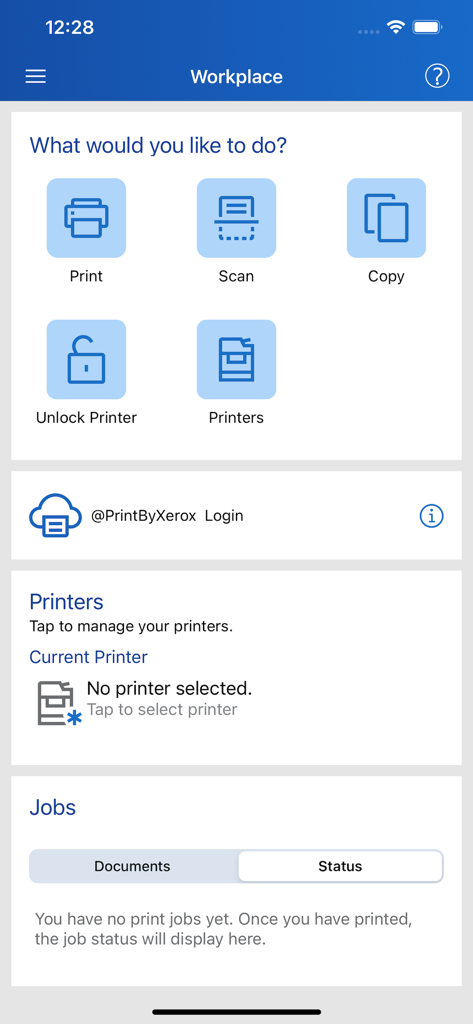
Xerox Workplace app dashboard showing options for print scan copy and printer management
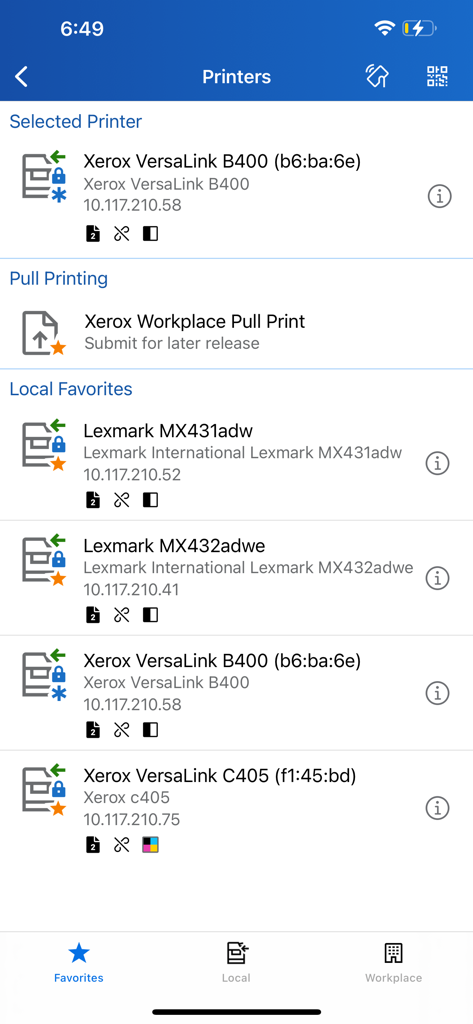
Xerox Workplace app interface displaying a list of selected printers, pull printing options, and local favorites.
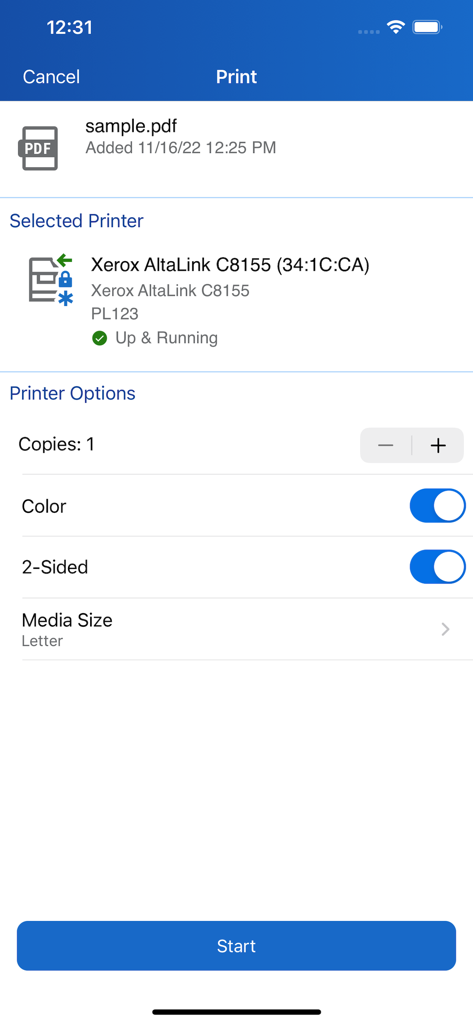
Interface of the Xerox Workplace app showing print settings and printer status for a PDF document.
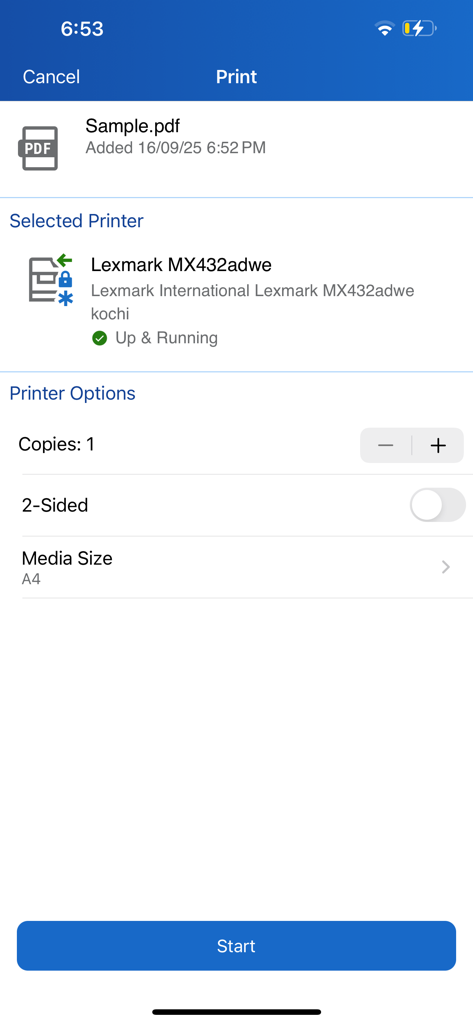
Xerox Workplace app interface displaying document print settings for a selected printer
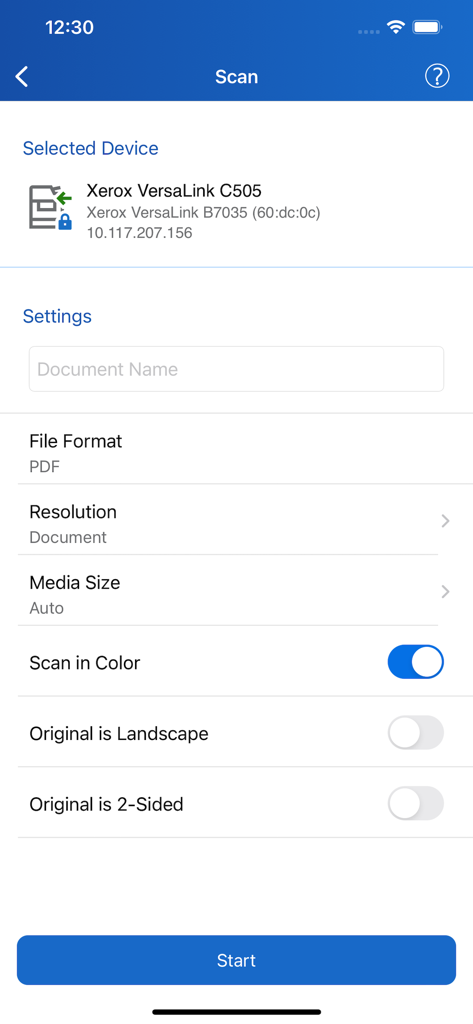
Xerox Workplace app scanning interface showing document settings for a printer
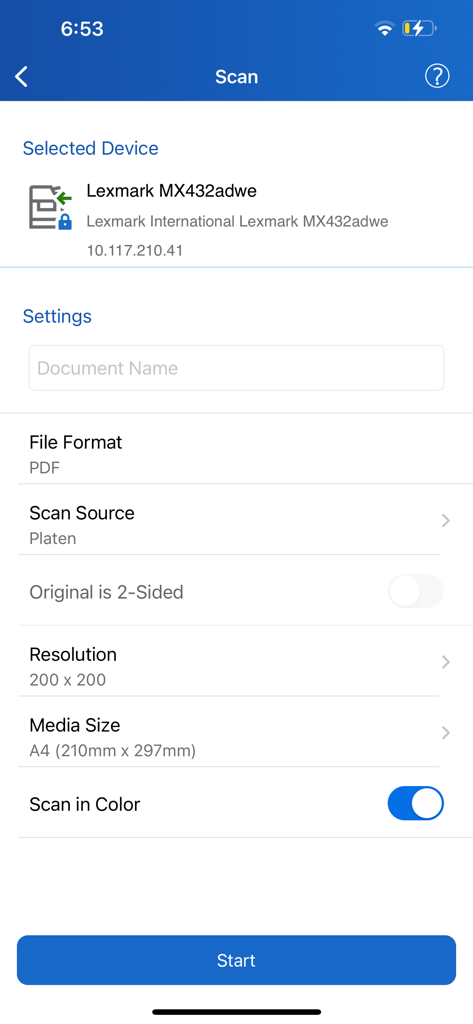
Scan settings interface in the Xerox Workplace app showing device and document options
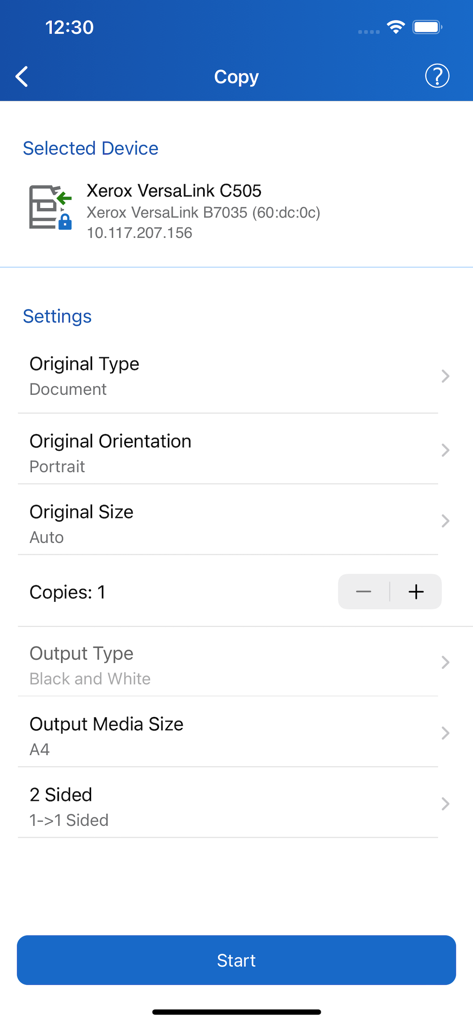
Copy settings screen in the Xerox Workplace app showing document orientation and output options
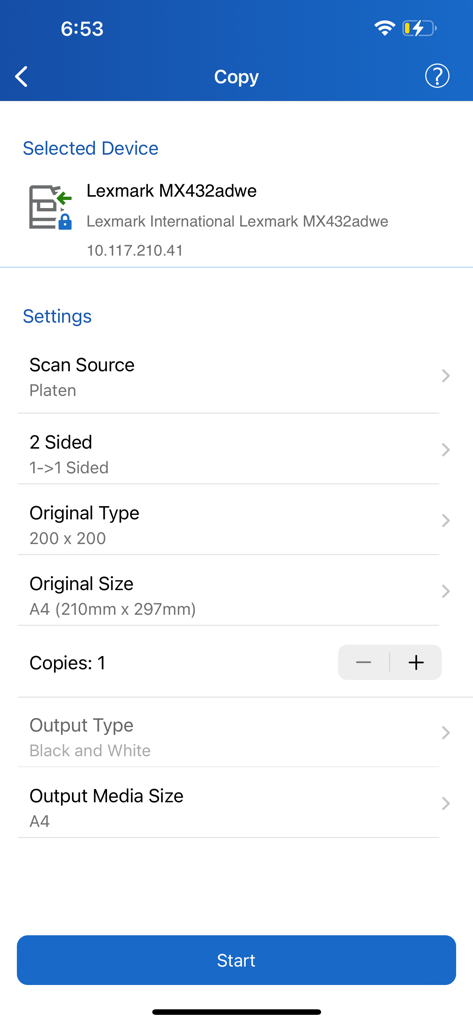
Xerox Workplace mobile app screen showing document copy configuration options including paper size and output type
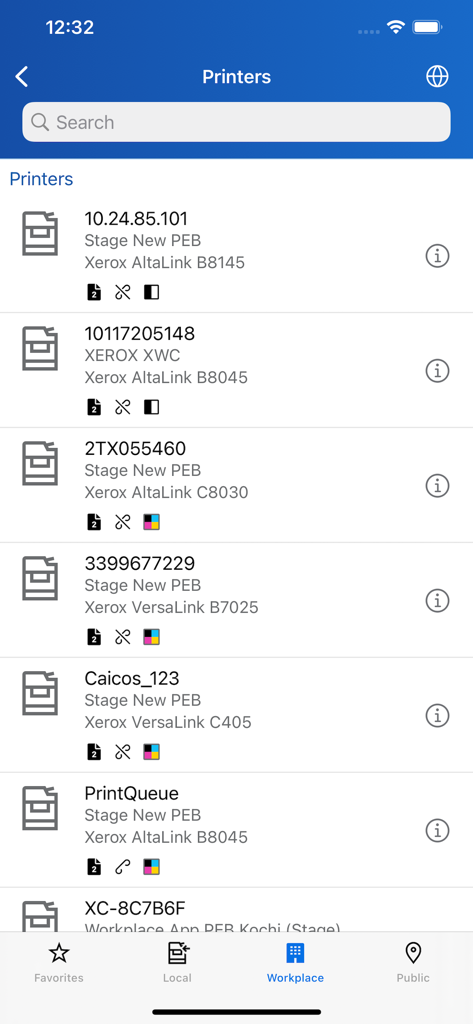
A mobile app screen displaying a searchable list of available Xerox printers with model details and status icons.
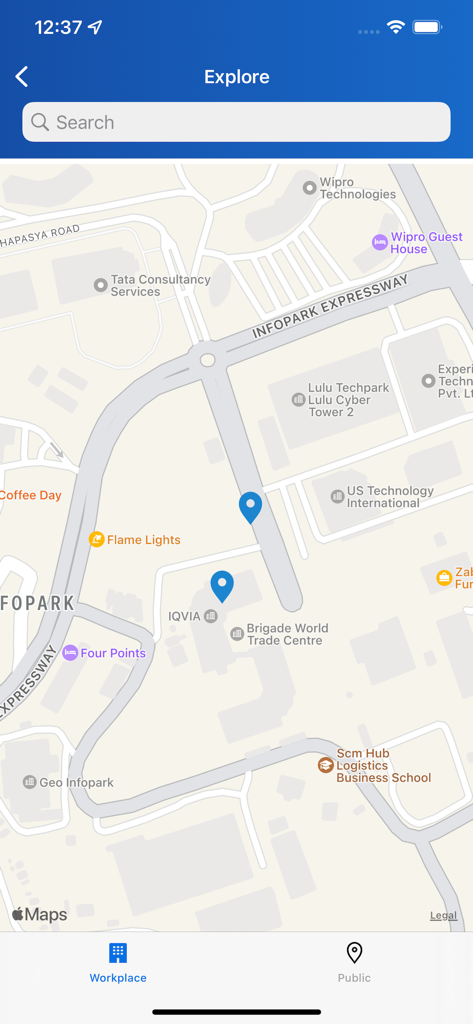
Xerox Workplace app map view showing nearby printer locations with blue pins
Description
Download
More Like This
Apps with similar features and user experience
Photo Print: CVS Quick Prints
PlusMinusOne, Inc.

Princh
Princh ApS
7-Eleven Multicopy
FUJIFILM Business Innovation Corp.

COPIX
KOPIKS, OOO
Network Print
Sharp Corporation
ファミマネットワークプリント
FamilyMart Co.,Ltd.
FUJIFILM WPS Photo Transfer
FUJIFILM Corporation

printingbox
VISIONOTS Co.,Ltd
Wepa Print
WEPA Inc.
This page is not an official page of the app or its developer, but an independent editorial publication created for informational and commentary purposes. Unless expressly stated otherwise, neither the app nor its developer is affiliated with, endorsed by, sponsored by, authorized by, or otherwise officially connected with MWM, Apple, Google Play, the app publisher, or the app's developer, and nothing on this page implies that the app was developed using MWM's services. Any trademarks, logos, screenshots, and other content remain the property of their respective owners.